
Learn how to view and review scripClip alerts.
scripClip alerts give pharmacy staff timely notifications when a prescription has potentially be tampered with, lost, or when a device has a low battery. These alerts, when used properly, can increase safety for patients and prevent errors from happening.
Alerts types
scripClip currently has three types of alerts:
- Open/Close. This alert is logged when a scripClip bag or clip-on is opened when in will-call. This safety feature ensures that prescriptions are not tampered with prior to distribution to a patient.
- Missing Package. This alert happens when the continuous monitoring system detects that a scripClip bag or clip-on in will-call has not reported back after a number of checks. This could indicate that the package was accidently dispensed or has somehow left the building.
- Low Battery. This alert happens when a scripClip device has a low battery while in will-call. This prevents a scripClip from having a dead battery while holding a patient's prescription.
Viewing and clearing an Alert
- Open the alerts page by selecting the icon in the lefthand navigation column. You can also view alerts directly by clicking the "view" button on the alert banner.
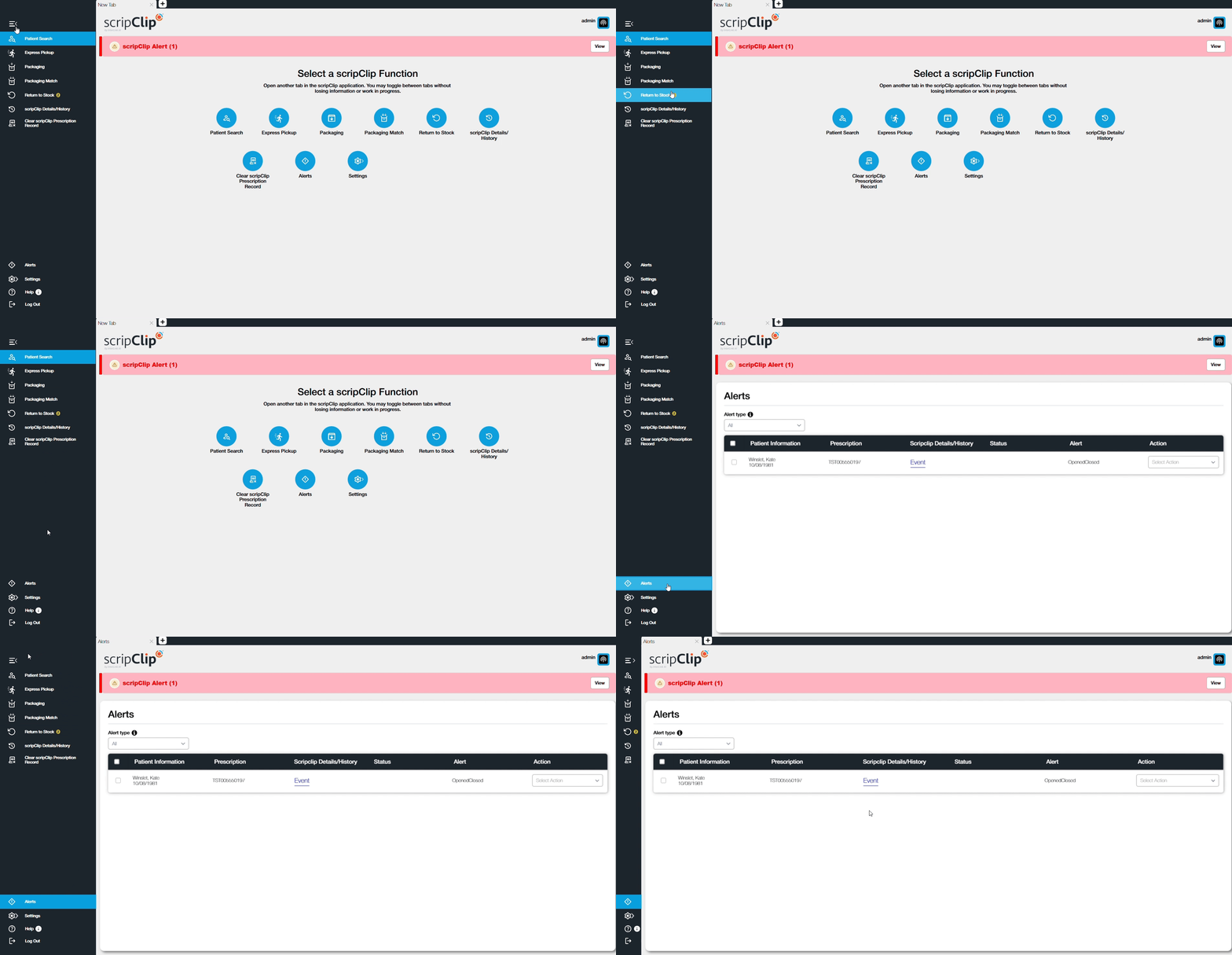
- Select the alerts that need to be cleared using the checkmark next to the alert.
- Click the “Locate” button to locate the selected scripClip.
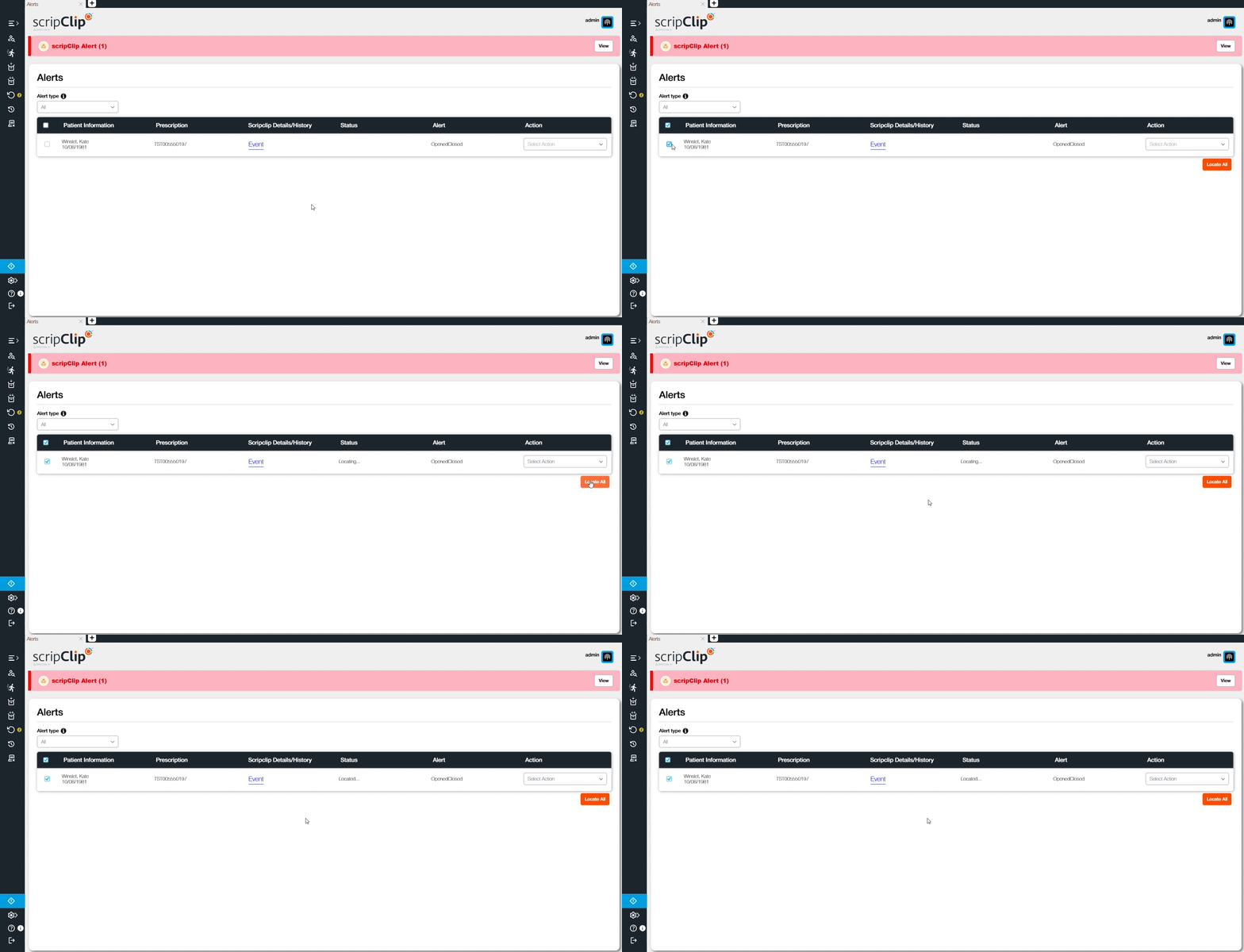
- Retrieve the scripClip and check the package for any issues. For instance, if you are checking a scripClip with an Open/Close alert, inspect the package to make sure that the prescription was not tampered.
- On each alert, select the action that you would like to take to clear the alert. Using the previous example, if the prescription was not tampered with after an Open/Close alert, select "Prescription OK".
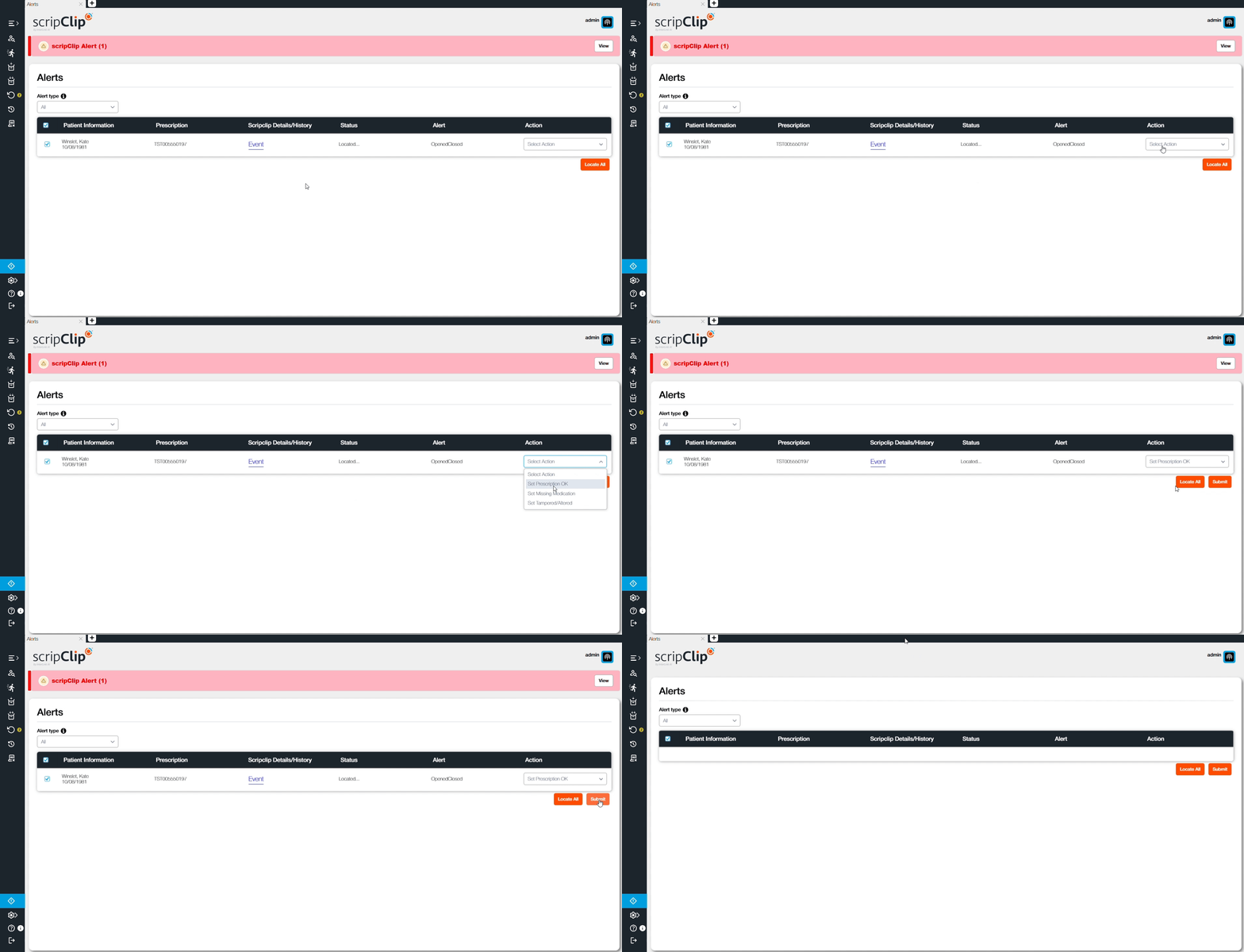
- Click “Submit” to clear the alert.