
Learn how to assign a patient's prescription to a scripClip
Packaging is the process of assigning a patient's prescription to a scripClip bag or clip-on. Most scripClip enabled pharmacies check-in prescriptions into scripClip after pharmacist verification.
The workflow is incredibly simple and only requires a workstation with scripClip installed, a prescription with paperwork, and the scripClip you will be using.
In this help article:
- Packaging a single prescription
- Packaging multiple prescriptions
- Packaging a prescription with multiple vials
Packaging a patient prescription
- Open the packaging screen in the scripClip application. Click the icon on the left hand navigation column, or use the hotkey "Alt+P" to quickly navigate to the packaging screen.
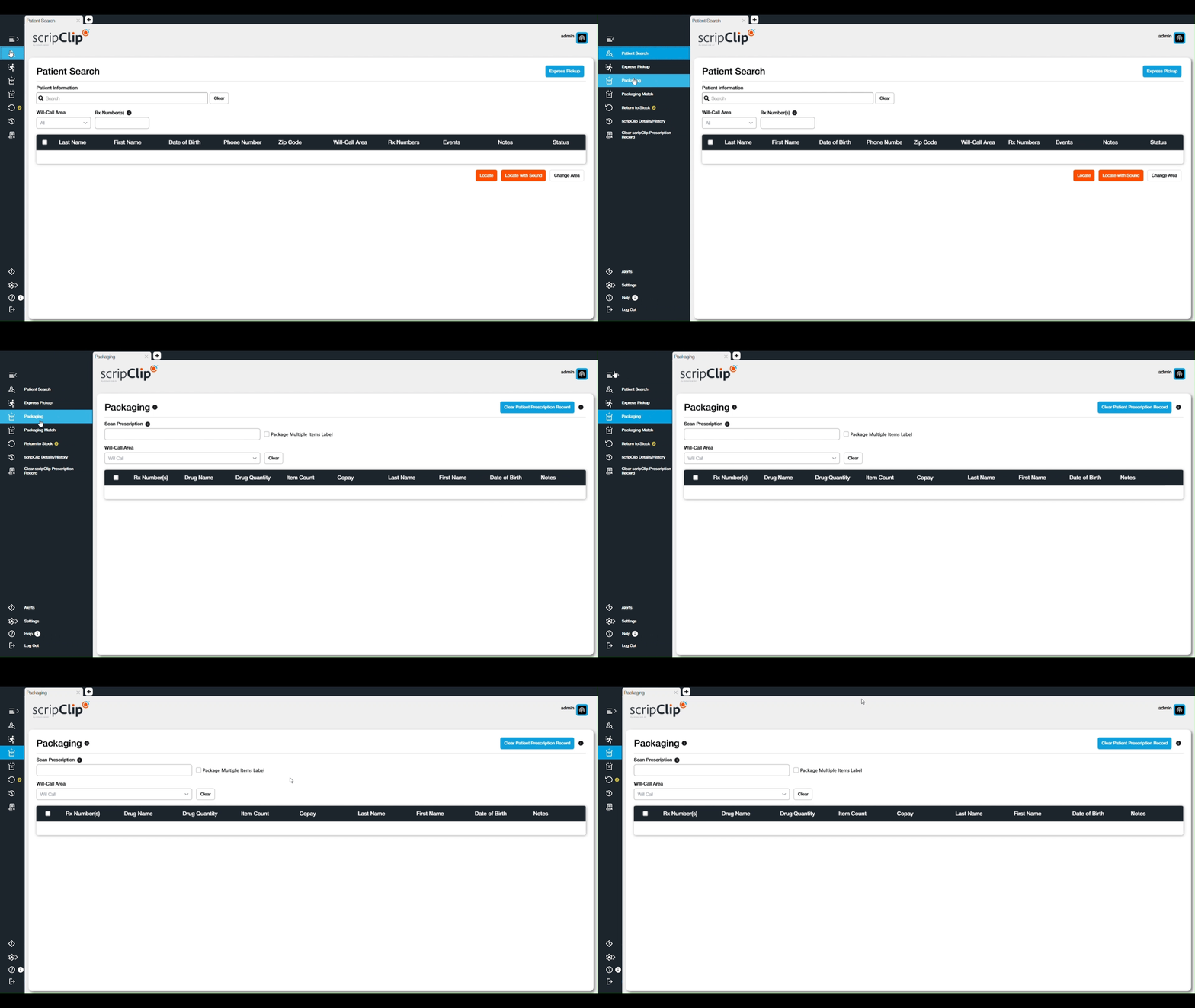
- Scan the paperwork of the prescription you would like to clip inzto a scripClip. The prescription number will appear in the table.
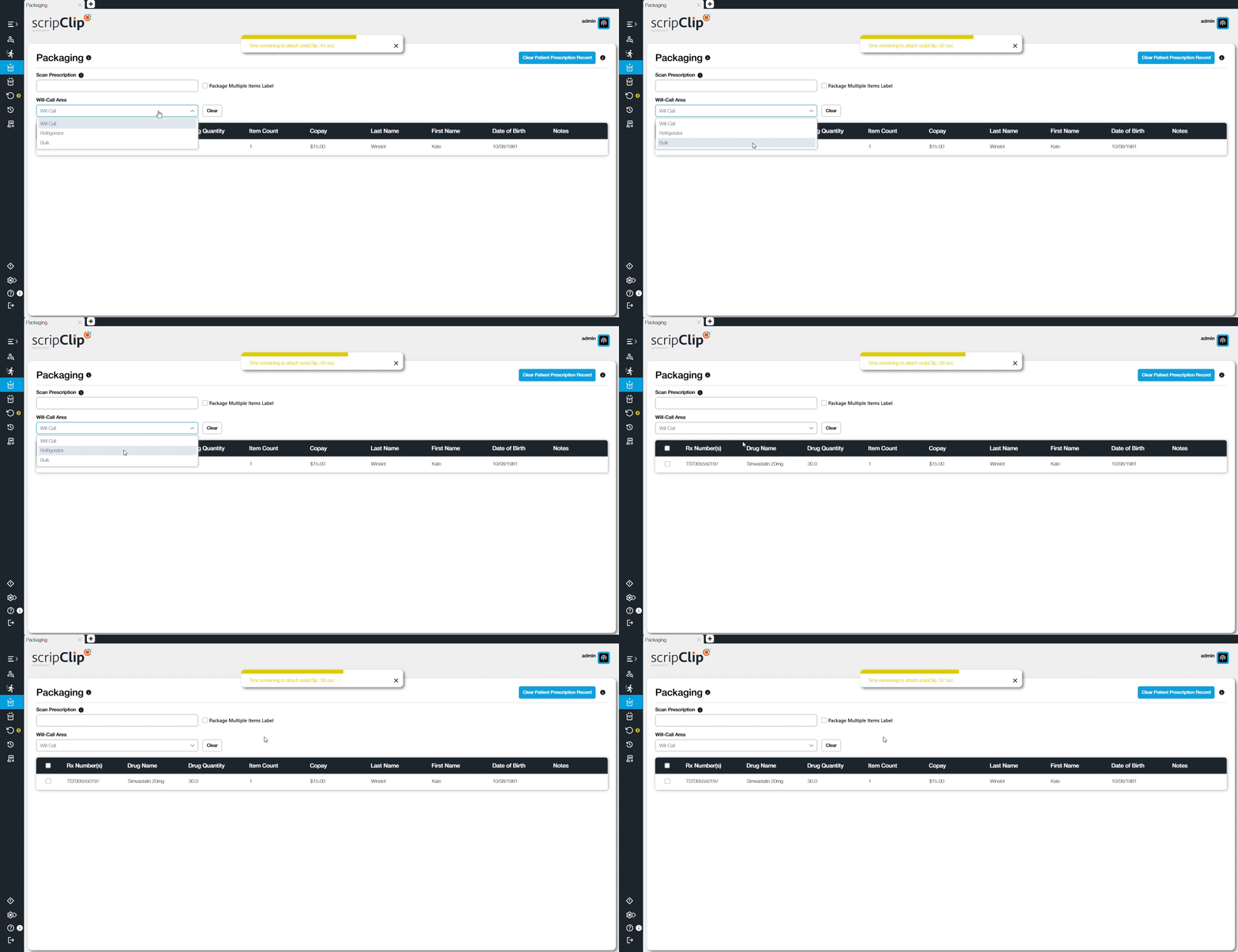
- Select the will-call area that the prescription will be assigned to. The application will default to select "Will-Call". Other examples include "Refrigerator" or "Bulk".
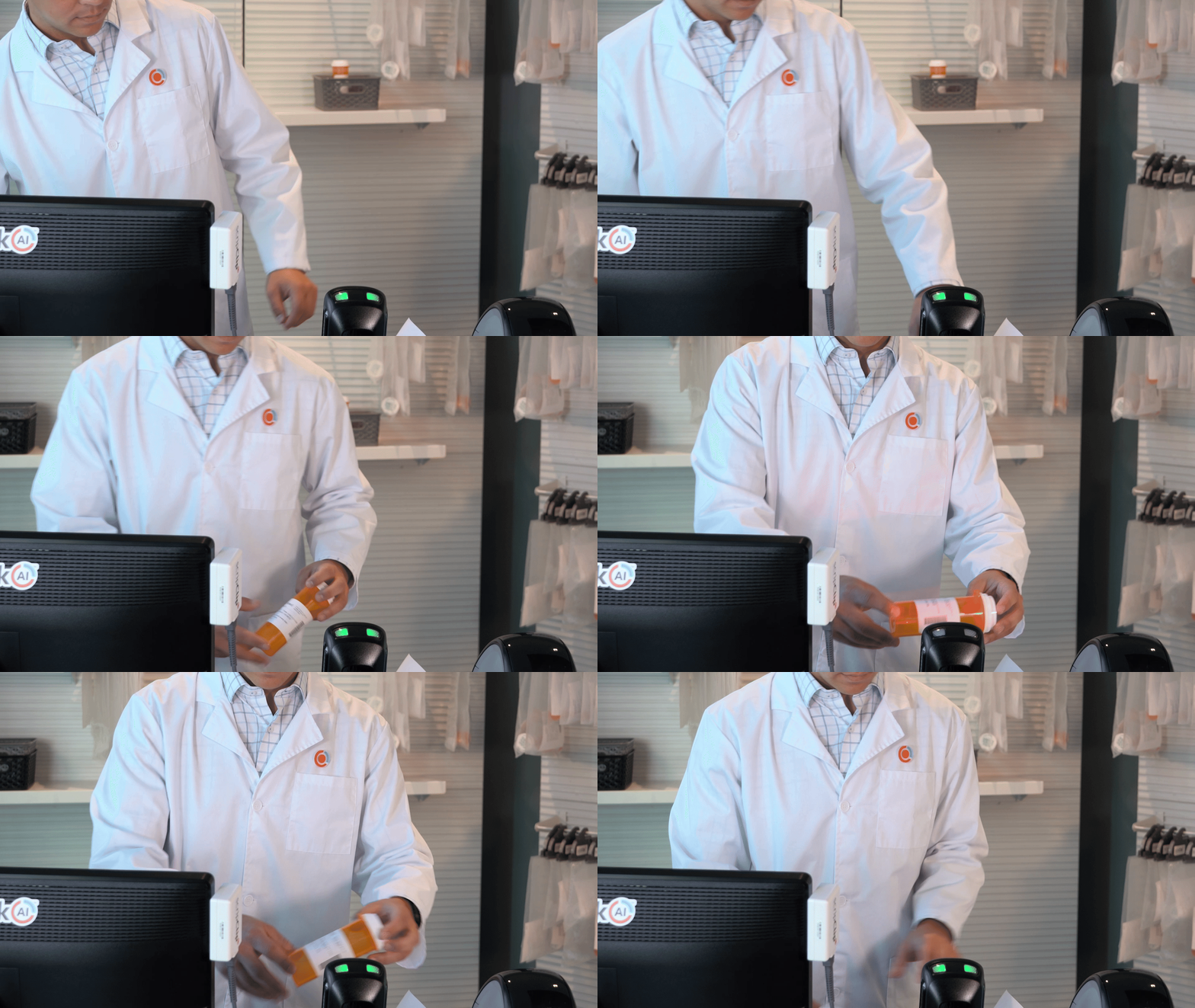
- Place the prescription into the scripClip bag or Clip-on and close it, then press the orange button on the scripClip near the reader. A timer will appear showing you how long you have to clip the prescription before a safety pause happens. The device will beep once if the packaging is successful. if assigning the prescription fails the device will beep three times.

- A message saying “Prescription Successfully clipped” will appear if the prescription was successfully attached. Place the now packaged scripClip in the appropriate area of the pharmacy.
Packaging multiple prescriptions
- Open the packaging screen in the scripClip application. Click the icon on the left hand navigation column, or use the hotkey "Alt+P" to quickly navigate to the packaging screen.
- Scan the paperwork of the prescription you would like to clip into a scripClip. The prescription number will appear in the table.
- Scan the next set of prescription paperwork. Repeat this process until all prescriptions are listed in the table.
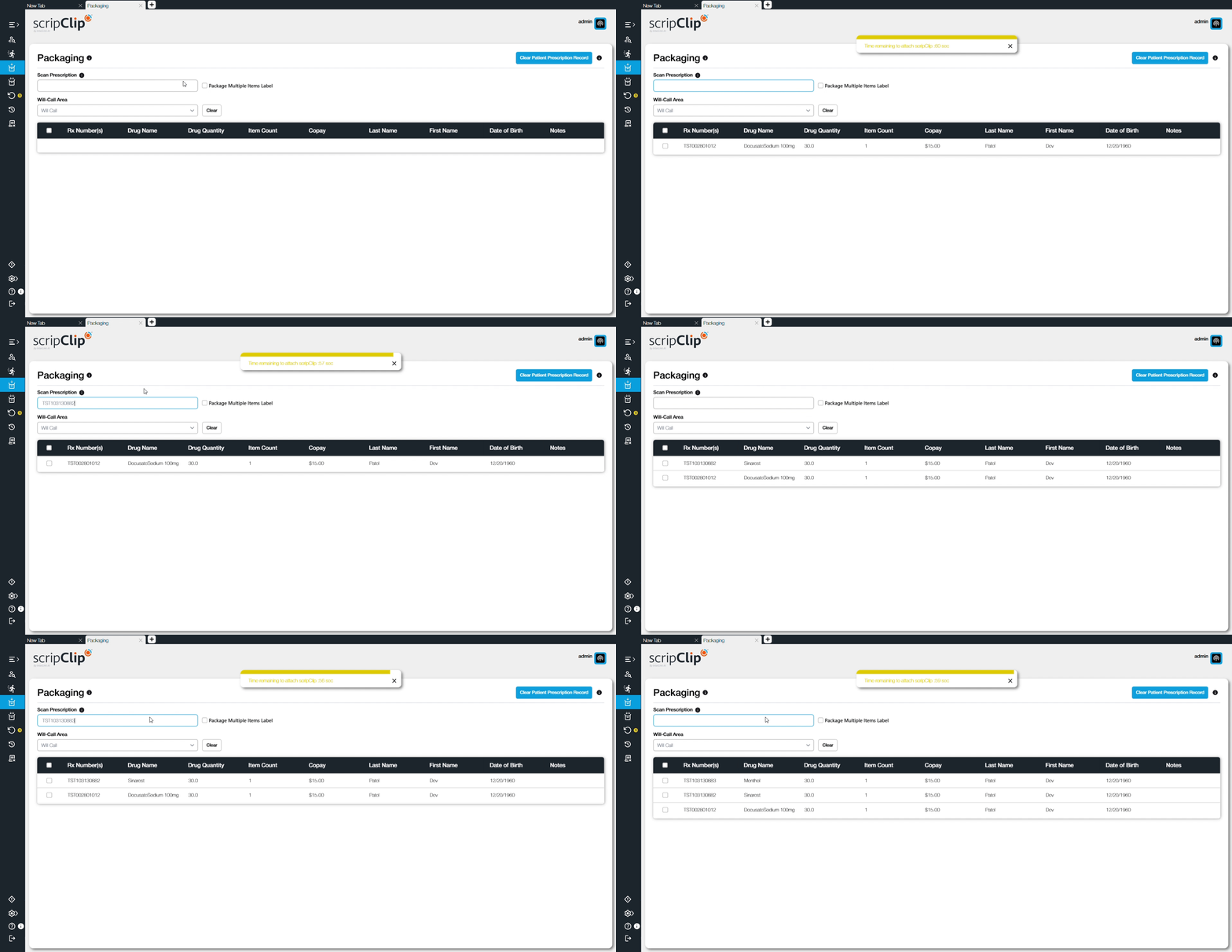
- Select the will-call area that the prescription will be assigned to. The application will default to select "Will-Call". Other examples include "Refrigerator" or "Bulk".
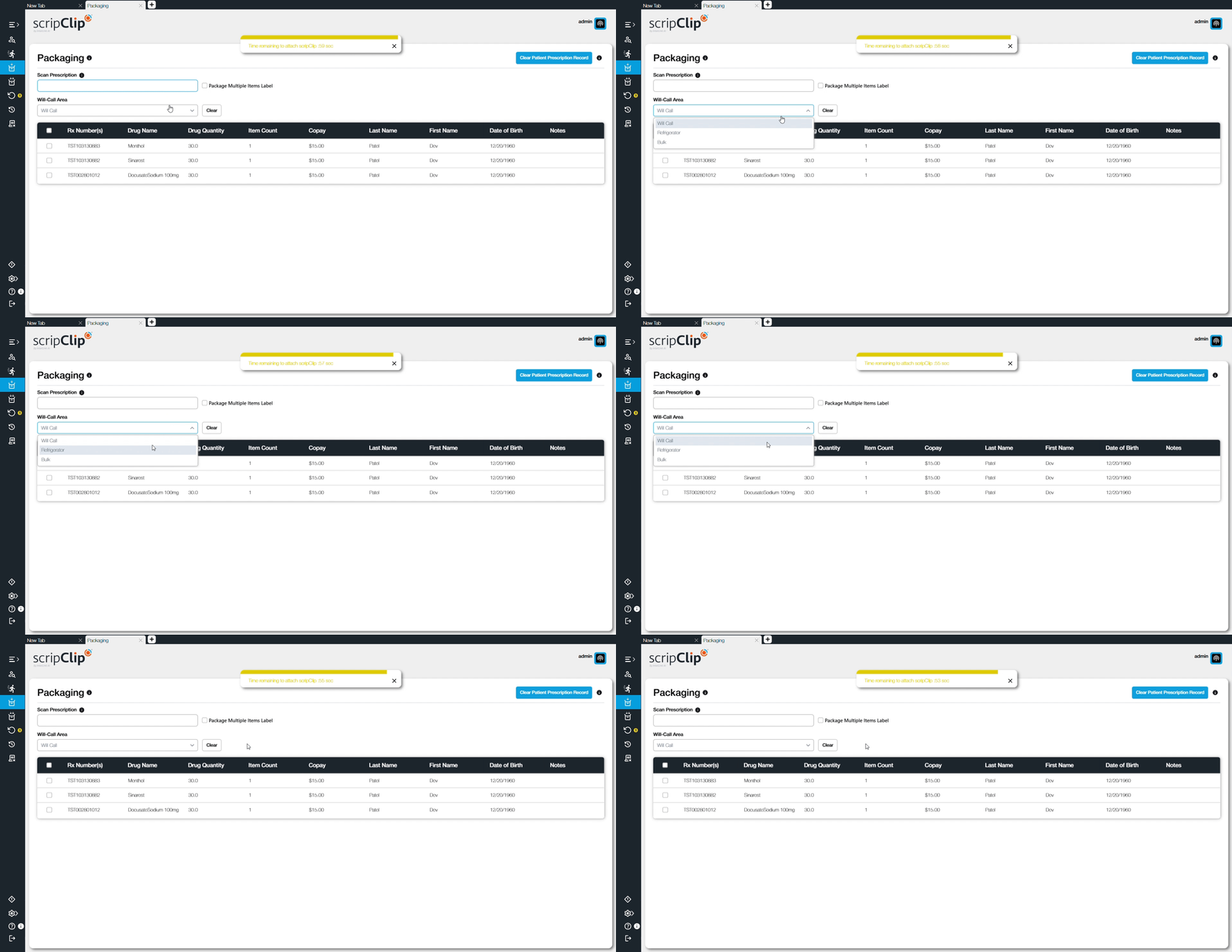
- Place the prescriptions into the scripClip bag or Clip-on and close it, then press the orange button on the scripClip near the reader. A timer will appear showing you how long you have to clip the prescription before a safety pause happens. The device will beep once if the packaging is successful. if assigning the prescription fails the device will beep three times.
- A message saying “Prescription Successfully clipped” will appear if the prescription was successfully attached. Place the now packaged scripClip in the appropriate area of the pharmacy.
Note: Up to 20 prescriptions can be assigned to a single scripClip, and all prescriptions must be for a single patient. Mixing prescriptions for different patients is not supported.
Packaging a prescription with multiple vials
- Open the packaging screen in the scripClip application. Click the icon on the left hand navigation column, or use the hotkey "Alt+P" to quickly navigate to the packaging screen.
- Select the checkbox next to "Package Multiple Items" to enable you to scan multiple vials.
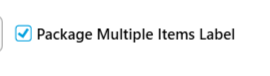
- Scan the paperwork of the prescriptions you would like to clip into a scripClip. The prescription number will appear in the table. Make sure to scan all vials for the prescription.
- Select the will-call area that the prescription will be assigned to. The application will default to select "Will-Call". Other examples include "Refrigerator" or "Bulk".
- Place the prescription into the scripClip bag or Clip-on and close it, then press the orange button on the scripClip near the reader. A timer will appear showing you how long you have to clip the prescription before a safety pause happens. The device will beep once if the packaging is successful. if assigning the prescription fails the device will beep three times.
- A message saying “Prescription Successfully clipped” will appear if the prescription was successfully attached. Place the now packaged scripClip in the appropriate area of the pharmacy.