
Learn how to use patient search to locate and check out a patient's prescription.
The Patient Search screen enables pharmacy staff to quickly search for a patient, locate their prescriptions in each will-call area, and safely check-out the prescription to the patient. This article will walk through each step of the process.
Locating a patient's prescriptions
- Open a new tab and select "patient search" from the navigation column or on the new tab page. Alternative, press "Alt+s" to quickly navigate to the patient search screen.
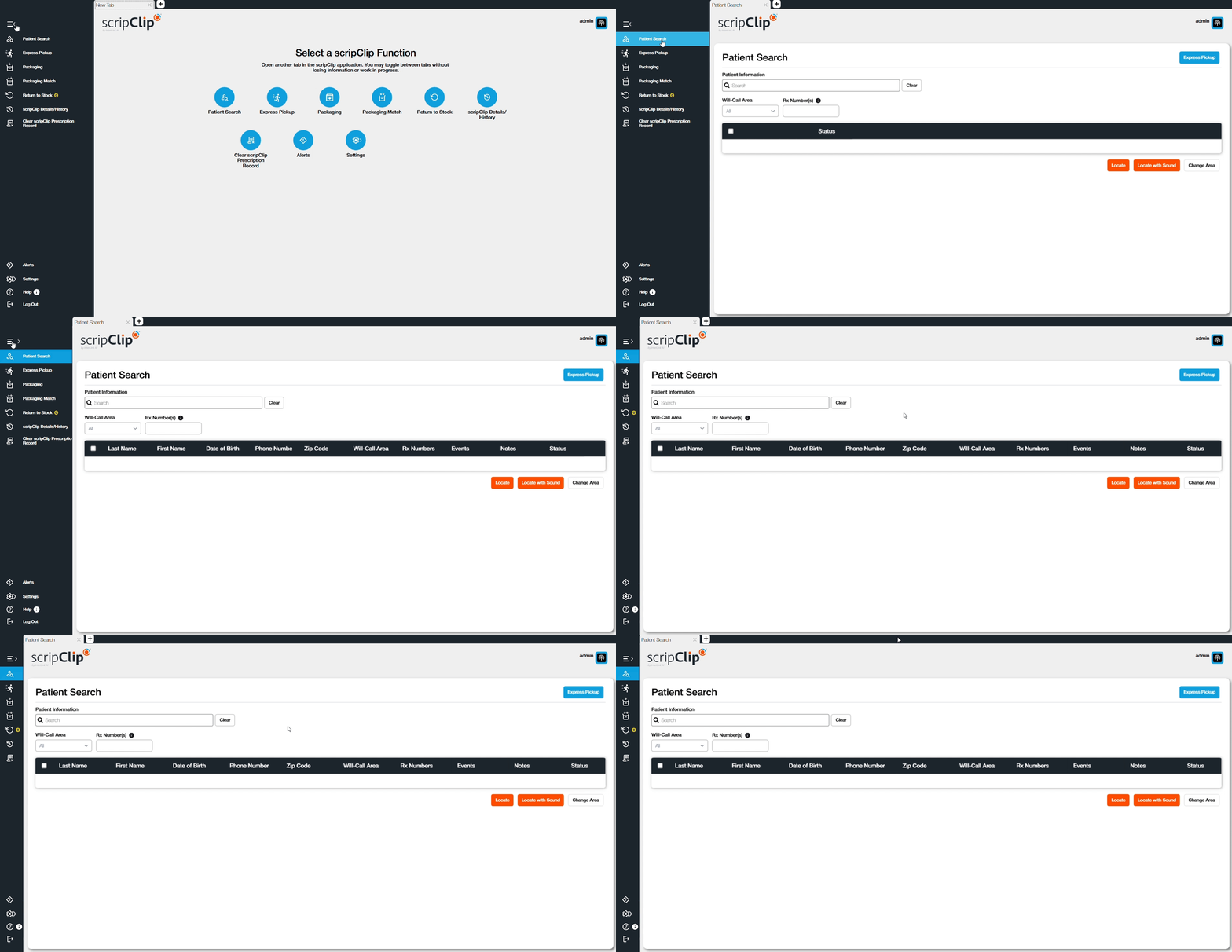
- Enter in the verification data for the patient (e.g. first and last name, date of birth, etc). If no results are shown, try adding additional information until a result is found.
Note: Settings for what patient information is required for results to show may change between pharmacies. To learn more and to change settings contact scripClip support.
- Select the patient from the results shown. Repeat this process if you are locating multiple patient’s packages.
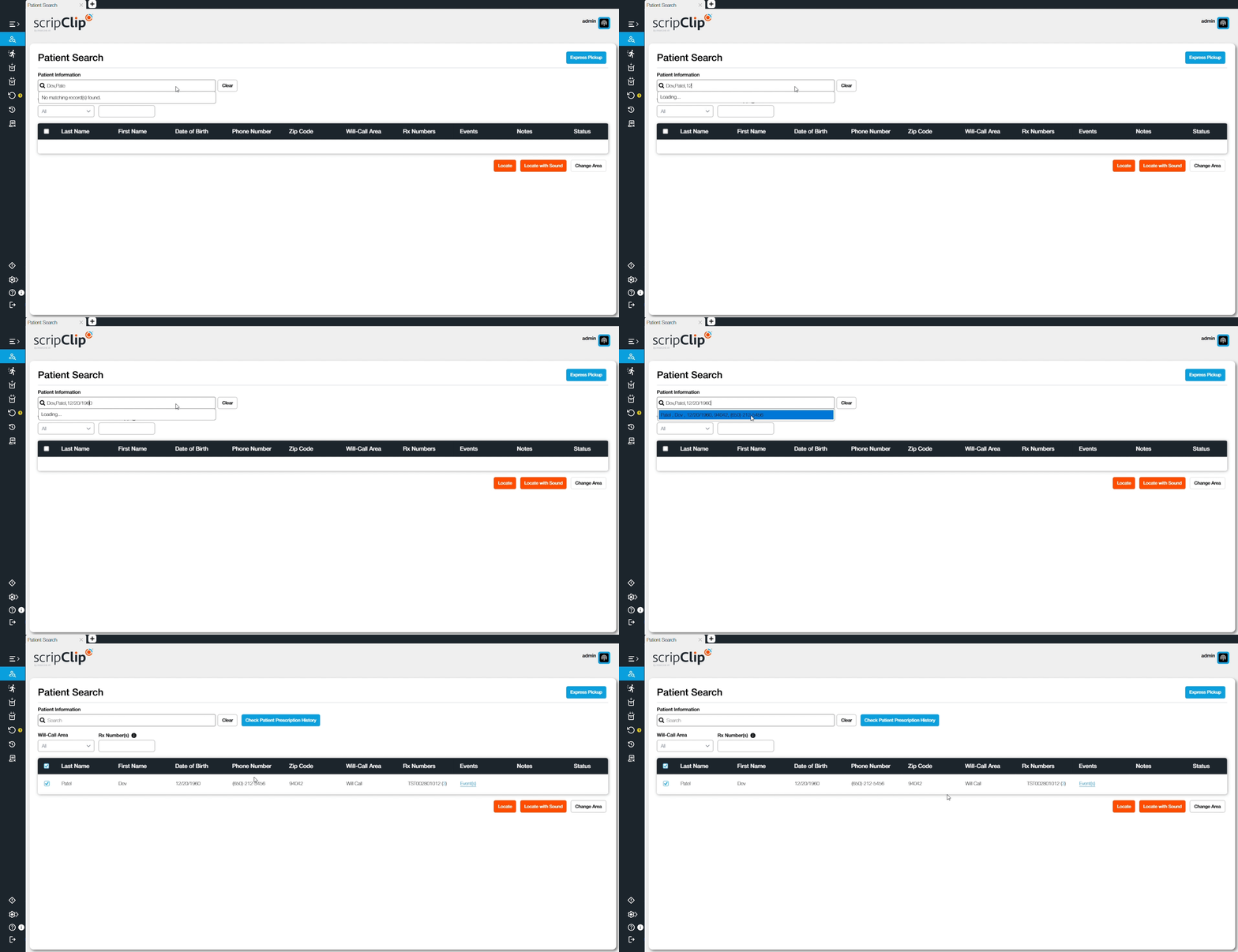
- The patient’s prescriptions will be added to the table. If a patient has multiple scripClips each package will appear as a separate row.
- Select the prescriptions you would like to locate by clicking the checkbox in each row or use the checkbox at the top of the table to select all prescriptions.
- Click “Locate” or “Locate with Sound”. The scripClips selected will light up and sound based on your workstation’s settings. Additionally, the flash beacons will flash to indicate which will-call area the prescription(s) are located in.
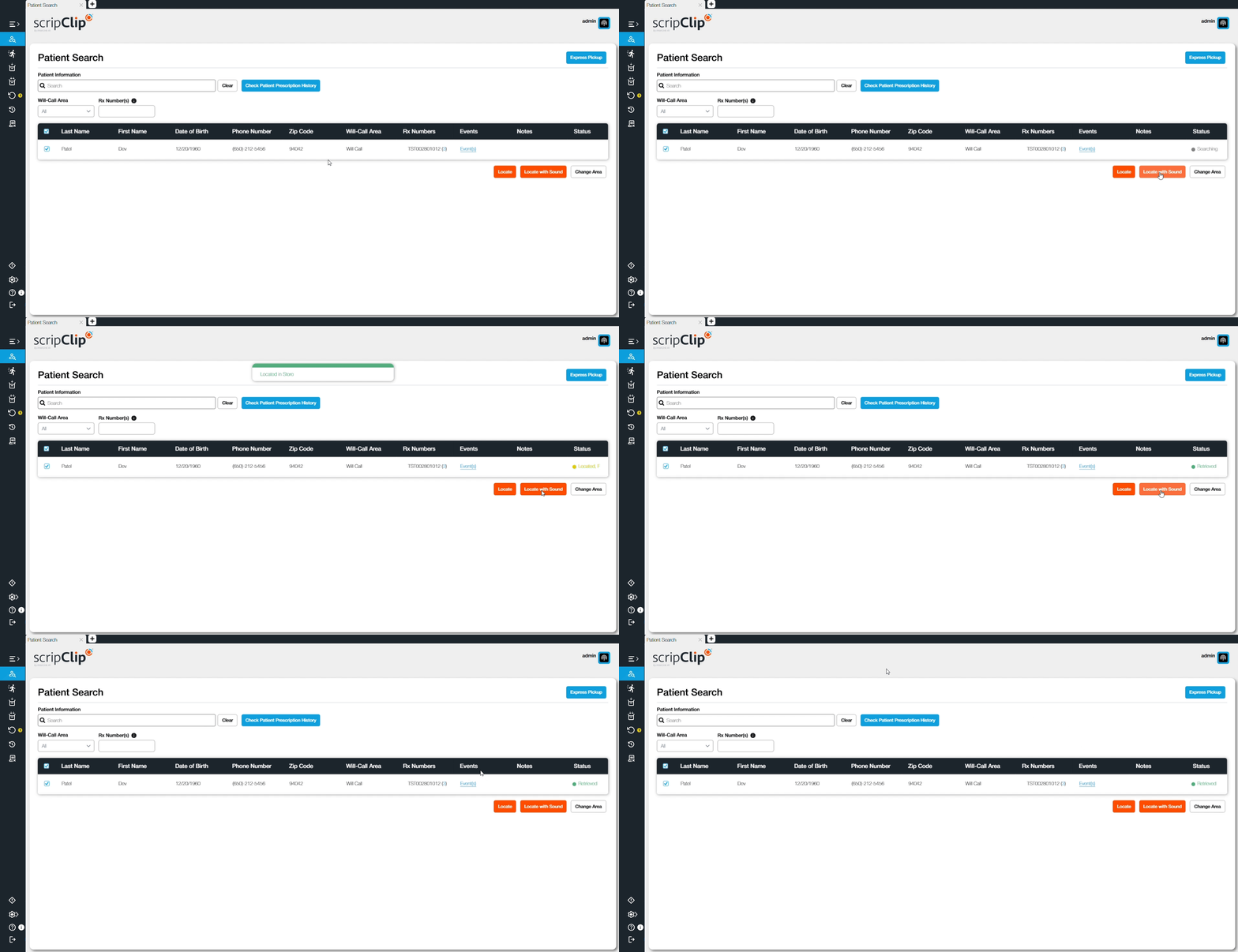
- Retrieve all packages for the patient. Once located, click the orange button on the scripClip(s) next to the Reader to check the prescriptions out of will-call.
Note: After checking the prescription out of scripClip continue your checkout process in the Pharmacy Management System and/or Point of Sale.