
Learn how to add your pharmacy staff into scripClip.
User management enables pharmacy admins to add, manage, and deactivate users in scripClip. Users can be customized in several ways, including access to specific screens, alert permissions, and more.
Adding a new user to scripClip
- Hover your mouse over the settings icon in the bottom of the lefthand navigation column. Click on "Admin Settings" and then select "User Management".
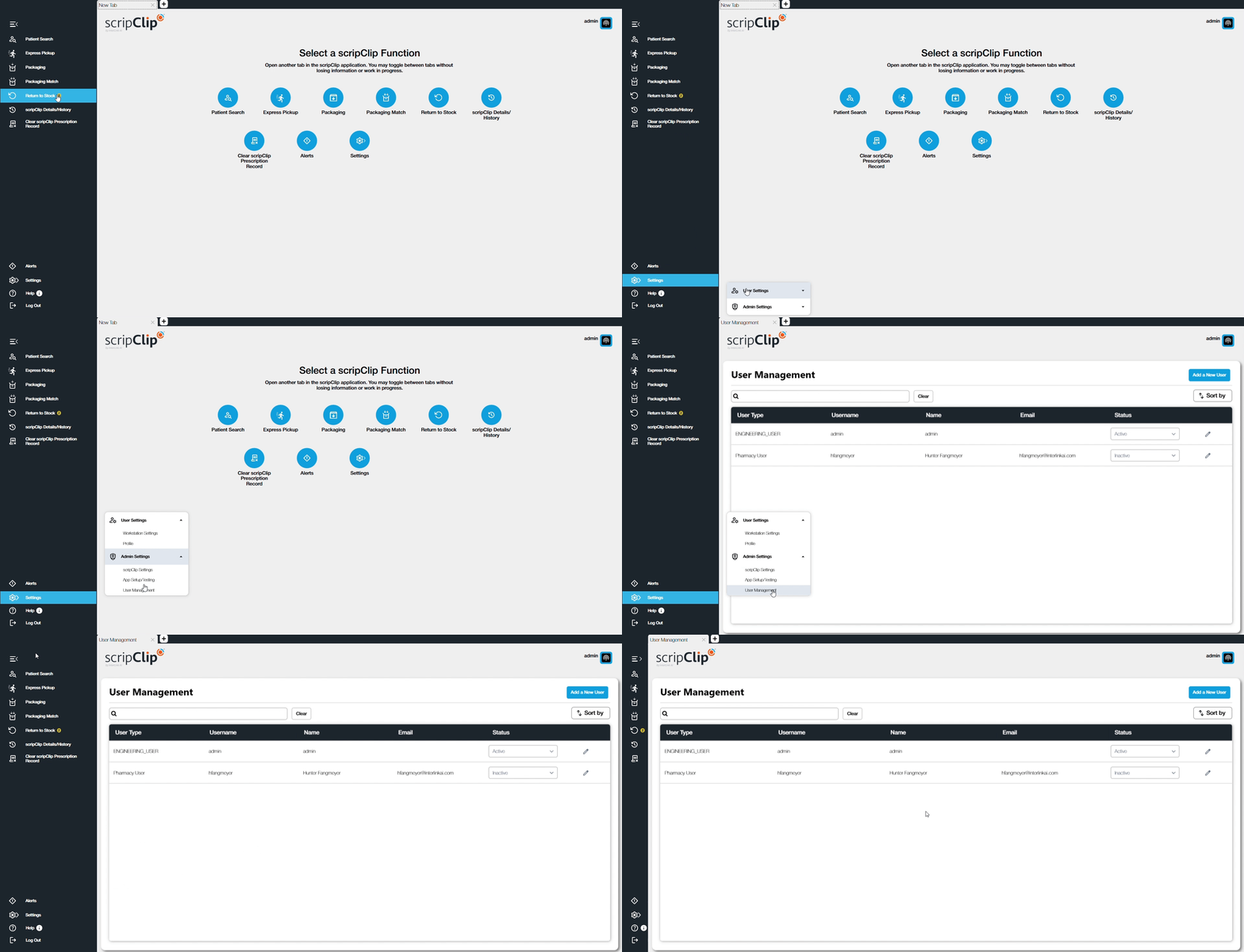
- Click "Add a New User" in the top right corner of the User Management screen.
- Enter in the required user information including User Type, Username, First Name, Last Name, and Email Address.
- Set the password for the user. The password must have atleast one of all of the following: Capital letter, lowercase letter, number or special character, and be 8 characters long.
- Select what pages the user will have access to. Users will always have access to patient search, packaging and packaging match.
- Click the drop down under Admin Permissions to select any admin privileges the user should have. This includes access to User Management, scripClip settings, App Settings, and RSSI Testing.
- Click the drop down under Advanced Settings to select what Alerts if any that the user should be able to see.
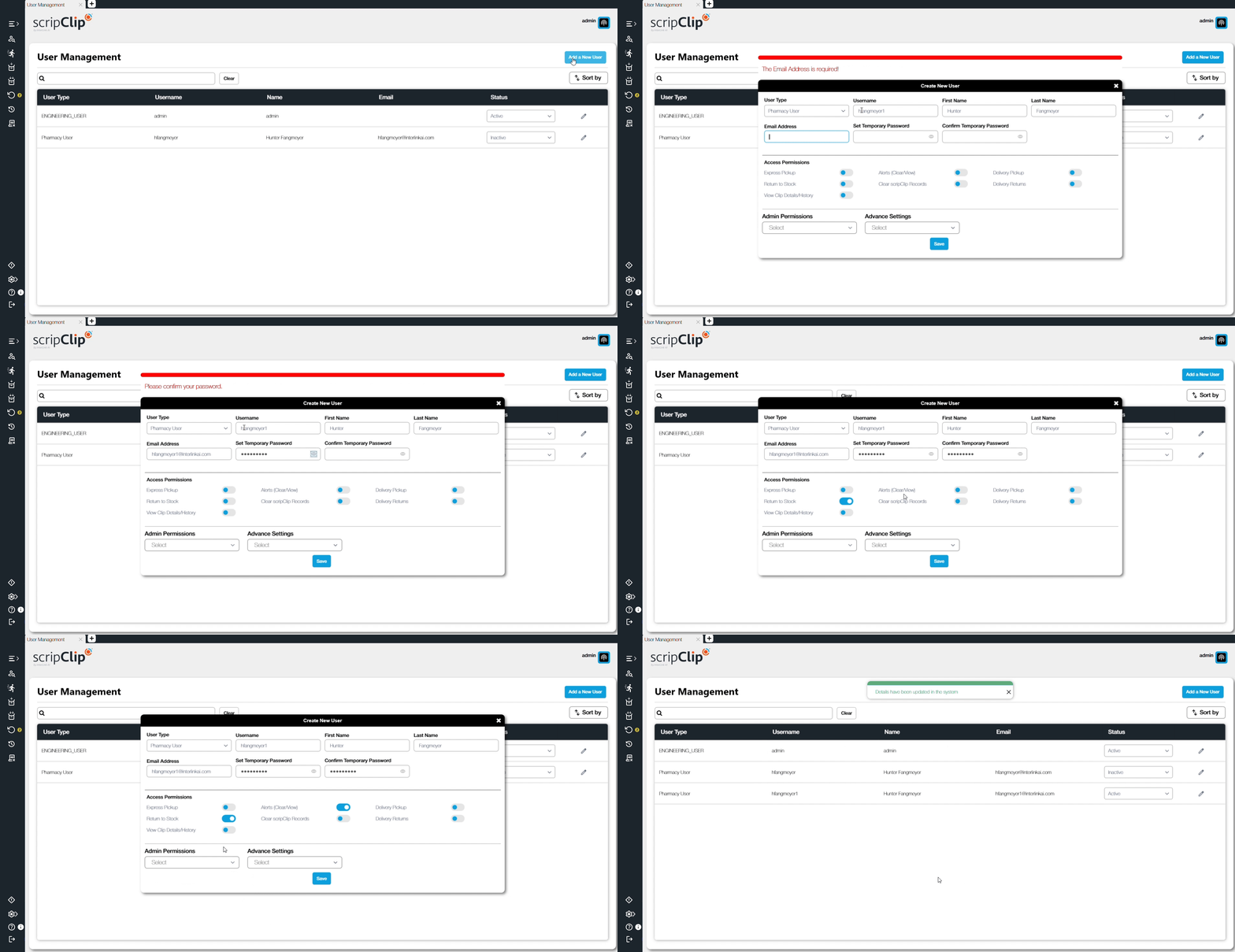
- When finished, click “save”.
Changing a user's settings in scripClip
- Hover your mouse over the settings icon in the bottom of the lefthand navigation column. Click on "Admin Settings" and then select "User Management".
- Search for and find the user that needs to be deactivated by sorting or using the search field.
- Click the edit button on the very right side of the user's row.
- Make any adjustments that are needed in the user's settings.
- When finished, click "save".
Deactivating a user in scripClip
- Hover your mouse over the settings icon in the bottom of the lefthand navigation column. Click on "Admin Settings" and then select "User Management".
- Search for and find the user that needs to be deactivated by sorting or using the search field.
- Click the drop down under "Status" and select "Inactive". The user will be set to inactive and will no longer be able to log in to scripClip.